Banword filter
The banword filter checks messages using the saved settings and can apply your chosen sanctions.
Configure and verify
Section titled “Configure and verify”Sign in, select the server and open Protection and select Edit beside Banword protection. April needs Kick Members and Ban Members for protection processing, along with permissions for the chosen action. Enable the filter, set its options, review global and filter role/channel permissions, choose Delete and/or Warn, then save. See Protection overview for setup and recovery.
Add a word entry and its permissions. The API starts with an empty list; the dashboard permits up to 20 entries. Each word must contain 1–30 characters to pass API validation, although the frontend permits up to 50. A new entry is enabled, not exact and not case-sensitive, with empty Deny role and channel lists. Exact compares the entire message; otherwise the Worker uses word boundaries. Case Sensitive changes the comparison. For example, an enabled exact entry example matches example but not example text. Test harmless terms; punctuation and word boundaries can affect matches.
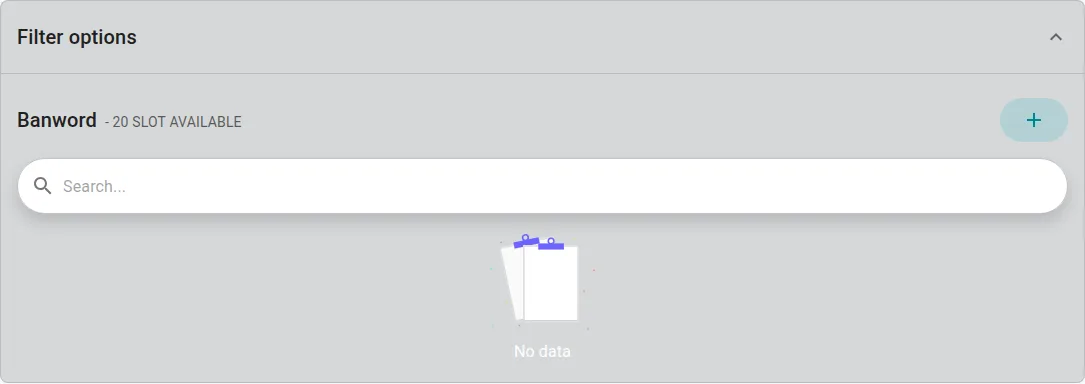
The local edit form shows settings before saving; the filter was disabled.
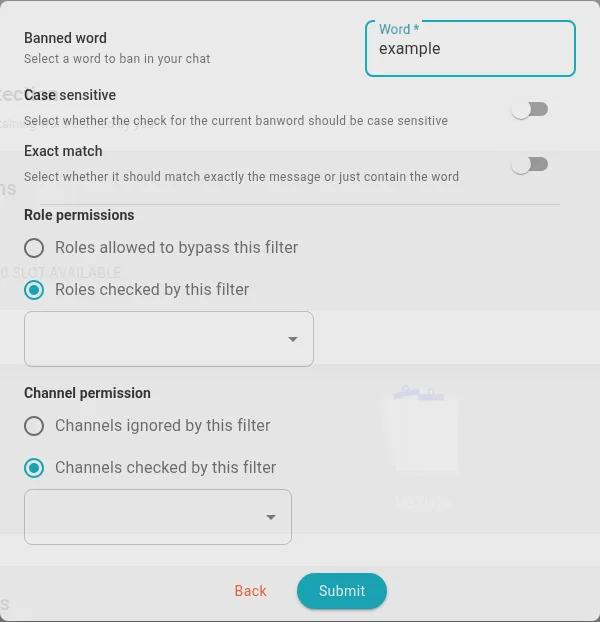
An example entry before saving.
In an authorized test channel, try a harmless example on each side of the boundary and inspect the protection log and actual Discord outcome. Saved settings do not prove delivery or deletion. If a save is rejected, shorten a word to 30 characters or fewer and check the entry limit. If the filter does not match, check its enabled state, permissions, exclusions and earlier matching filters. For a false positive, disable or adjust the rule and restore content manually if appropriate. Review automated actions before enabling escalation and messages before relying on warnings.