Emoji
Use Management > Emoji to discover and add an emoji to the selected Discord server. You must own the server or have Manage Server for dashboard access. April needs Discord’s Create Expressions permission to create an emoji; Discord documents a maximum image size of 256 KiB for creating a guild emoji.
Add an emoji
Section titled “Add an emoji”- Log in, select the server, and open Management > Emoji.
- Search the displayed collection and select an emoji.
- In the preview, enter an Emoji name of 3 to 50 characters and choose Create emoji.
- On success, the dashboard shows a message with
:name:. Check the emoji in Discord separately.

Search results for “smile” in the emoji collection.
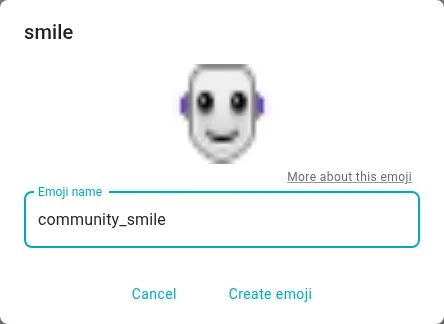
The smile preview and name form before choosing Create emoji.
For example, search for a smile, select a result, name it community_smile, and create it. The dashboard’s success message suggests typing :community_smile:. Availability and Discord’s server limits still apply. This page adds from the displayed collection; it does not edit or delete existing server emoji.
If creation fails
Section titled “If creation fails”Check the name, April’s permission, Discord’s emoji limits and the selected server. The dashboard reports a generic failure or limit message; it does not identify which condition occurred. Further additions are disabled after that error until the page is reloaded. Reload after checking the cause, then retry. If the collection stays on loading placeholders, retry later; the page has no separate provider-error message. Contact support if the issue persists.