Hierarchy
Discord role hierarchy decides which roles and members April can manage.
Why hierarchy matters
Section titled “Why hierarchy matters”Discord treats roles near the top of the role list as more powerful than roles below them. April can only assign, remove, or moderate roles and members below April’s highest role.
Giving April Administrator does not bypass role hierarchy. The bot role still needs to sit above the roles it should manage.
Find the role list
Section titled “Find the role list”- Open your Discord server.
- Go to Server Settings.
- Open Roles.
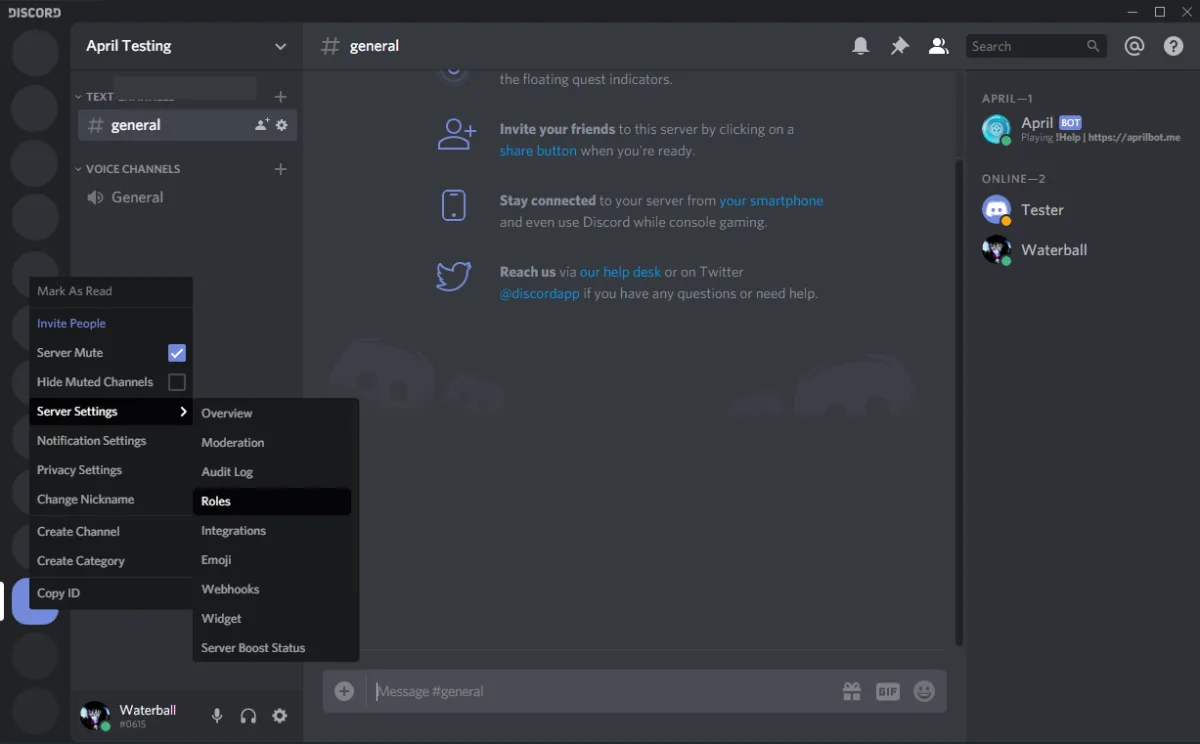
Discord shows the role order in the Roles page. Roles above April are out of reach; roles below April can be used by April features when permissions also allow it.
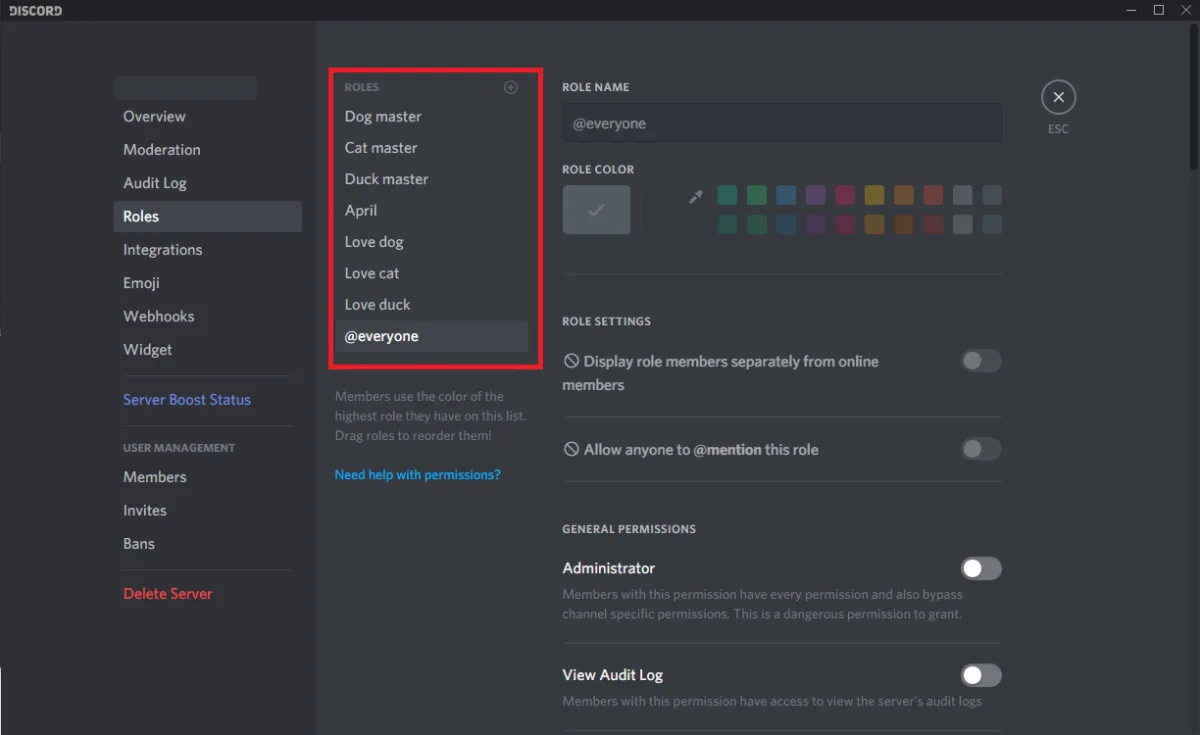
Fix role hierarchy
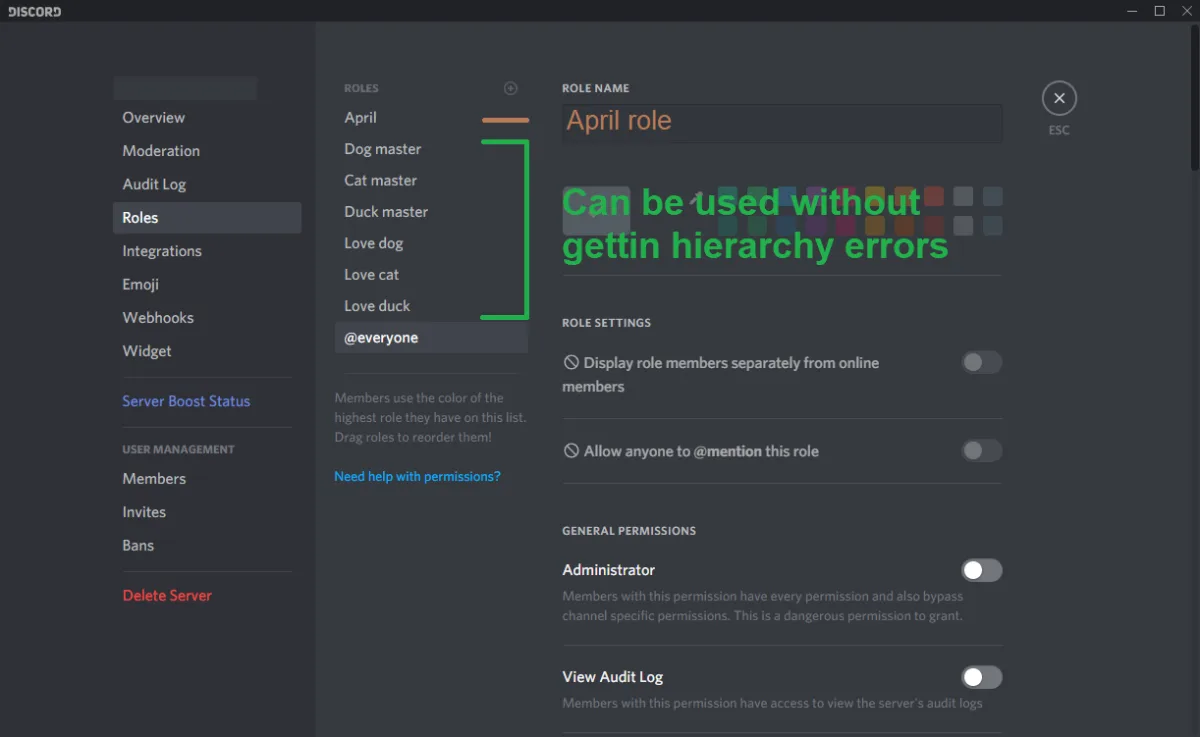
Section titled “Fix role hierarchy”- Find April’s bot role in the Discord role list.
- Drag April above every role it should assign, remove, or moderate.
- Keep owner, administrator, and staff-only roles above April if April should not manage them.
- Save Discord settings.
- Retry the dashboard action.
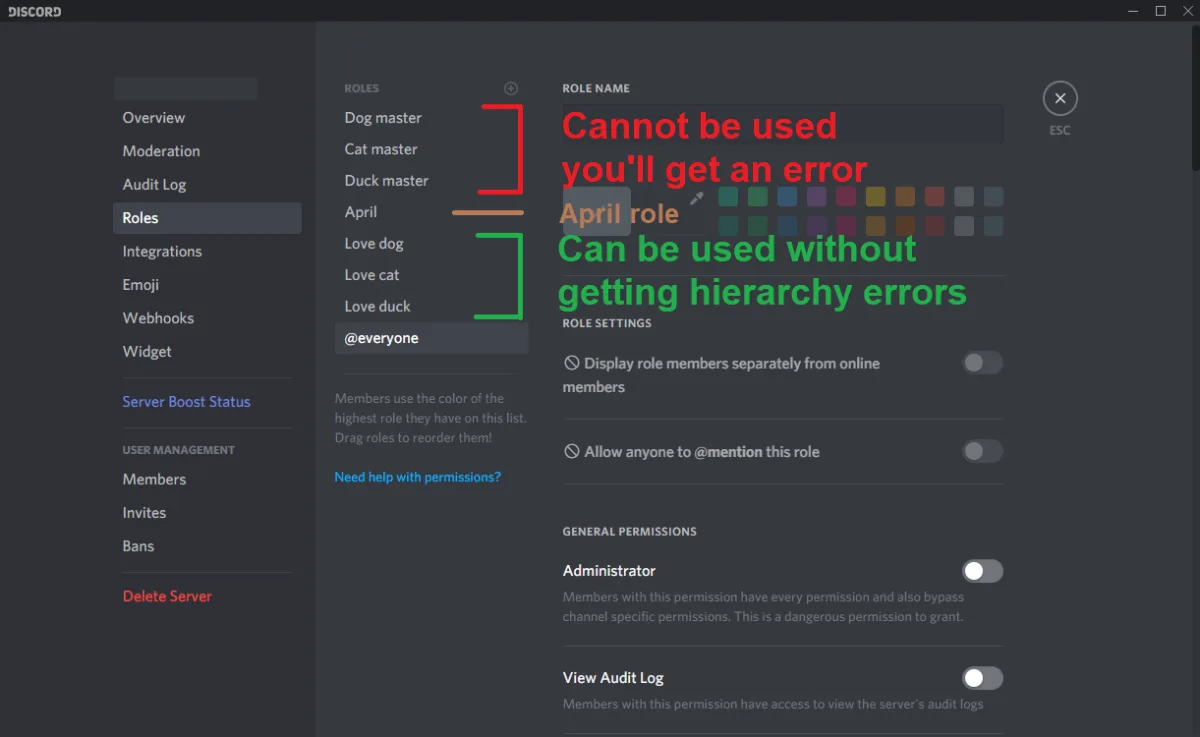
In this example, April can use the green roles below it, but cannot use the red roles above it.
Move April above the roles you want it to manage. After the order is fixed, April can use the roles below it.
Common symptoms
Section titled “Common symptoms”- A role is missing from a selector.
- Autorole, self role, or reaction role does not assign.
- Protection cannot timeout, kick, or ban a member.
- Moderation actions work on some members but fail on staff or bots.
- Discord shows “missing permissions” even though the dashboard form saved.
Channel permissions
Section titled “Channel permissions”Role hierarchy is separate from channel permissions. April also needs access to view the channel, send messages, embed links, manage messages, or add reactions depending on the feature.
Your own role
Section titled “Your own role”Discord also checks your role position. If you are not the server owner, your highest role must be above the role you are trying to move or configure.